Zero errors in packaging.
The Olasis Göz camera automatically reads every part that goes into the box. No handheld scanners, no manual scanning. A box with a missing or wrong part can’t be closed, and a video of every package is kept. When a customer says “this part was missing,” you pull up the box contents and the packing footage.
We’re at Woodtech Istanbul 2026: October 22-25, Tuyap, Hall 10, Stand 1010. See a live packing line and a demo drilling machine printing labels at our stand.
Time to read a QR code in a single frame. Measured on a live camera.
On a live camera, 5 out of 5 labels in the box were read.
Every package video can be watched going back at least this far.
A unique ID on every label. The same part can’t be counted twice.
Incomplete boxes, wrong parts and “who packed this?”
A piece of furniture ships in several boxes, and each box holds dozens of parts. If a single shelf is missing, the customer can’t assemble it and a second shipment goes out. Without a record of who packed the incomplete box and when, it turns into a blame game. Olasis checks the box before it’s closed and keeps a record of it. Made for furniture and panel factories, it’s installed with your existing machinery.
Labels print automatically at the machine
As soon as work starts on a machine, especially the drilling machine, the part’s QR label prints automatically; there’s no scanning at this step. The first five digits of the label identify the part type; the remaining ten are a serial number unique to that label.
Parts are read automatically as they go into the box
The Olasis Göz camera above the packing table automatically reads the label on every part placed in the box. No handheld scanner, no scan gun; the packer just puts the part in the box.
A box with missing parts can’t be closed
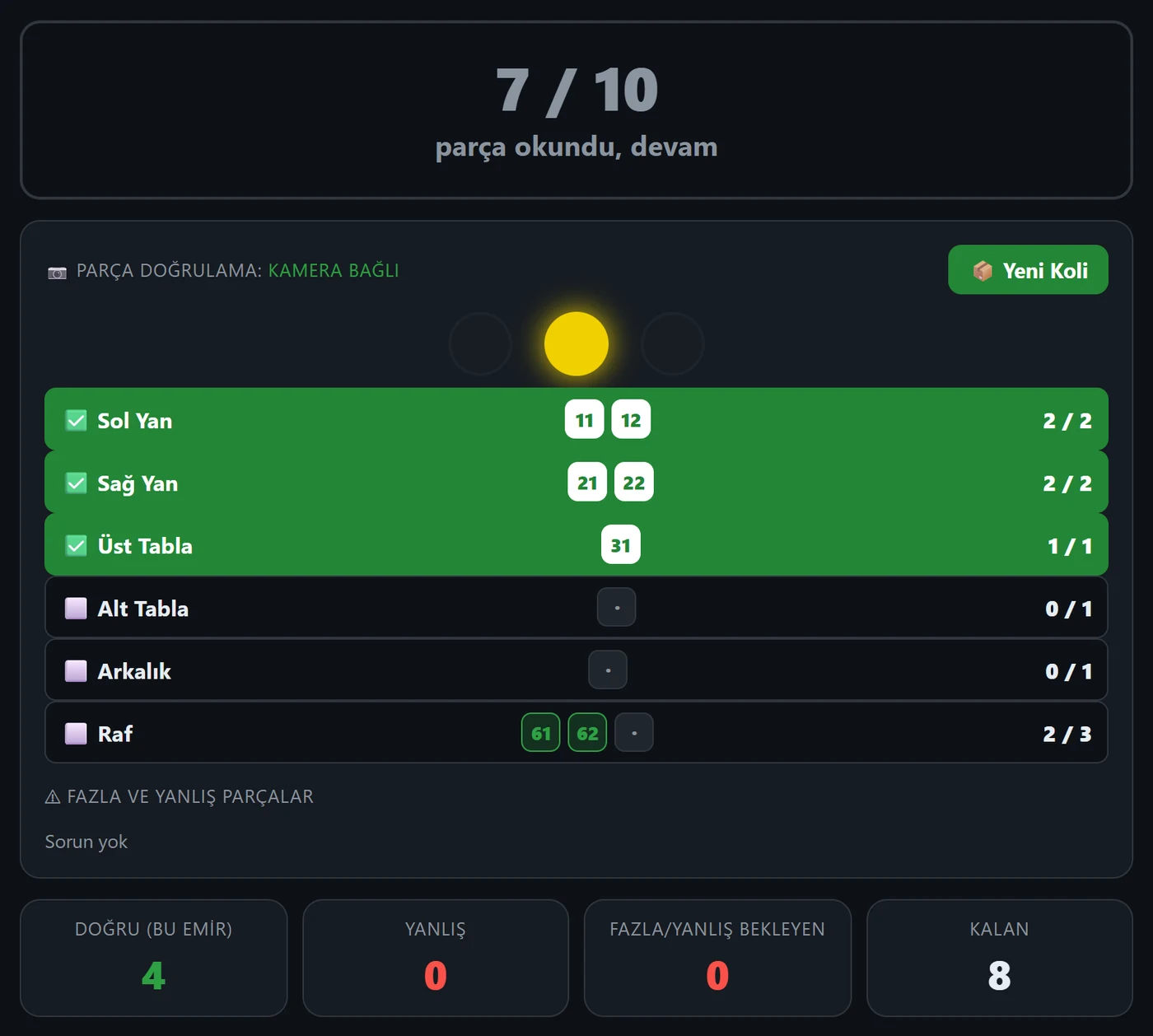
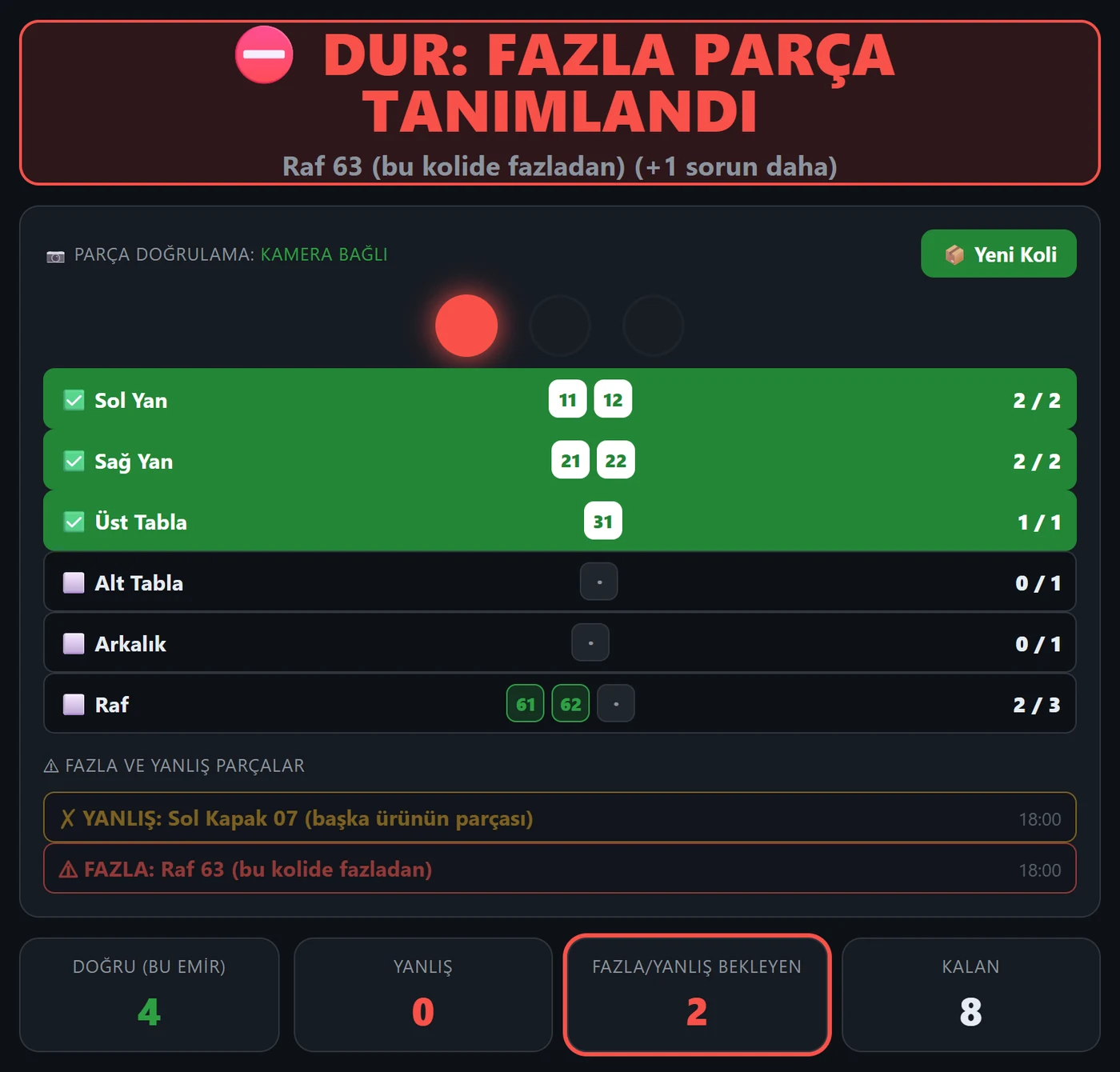
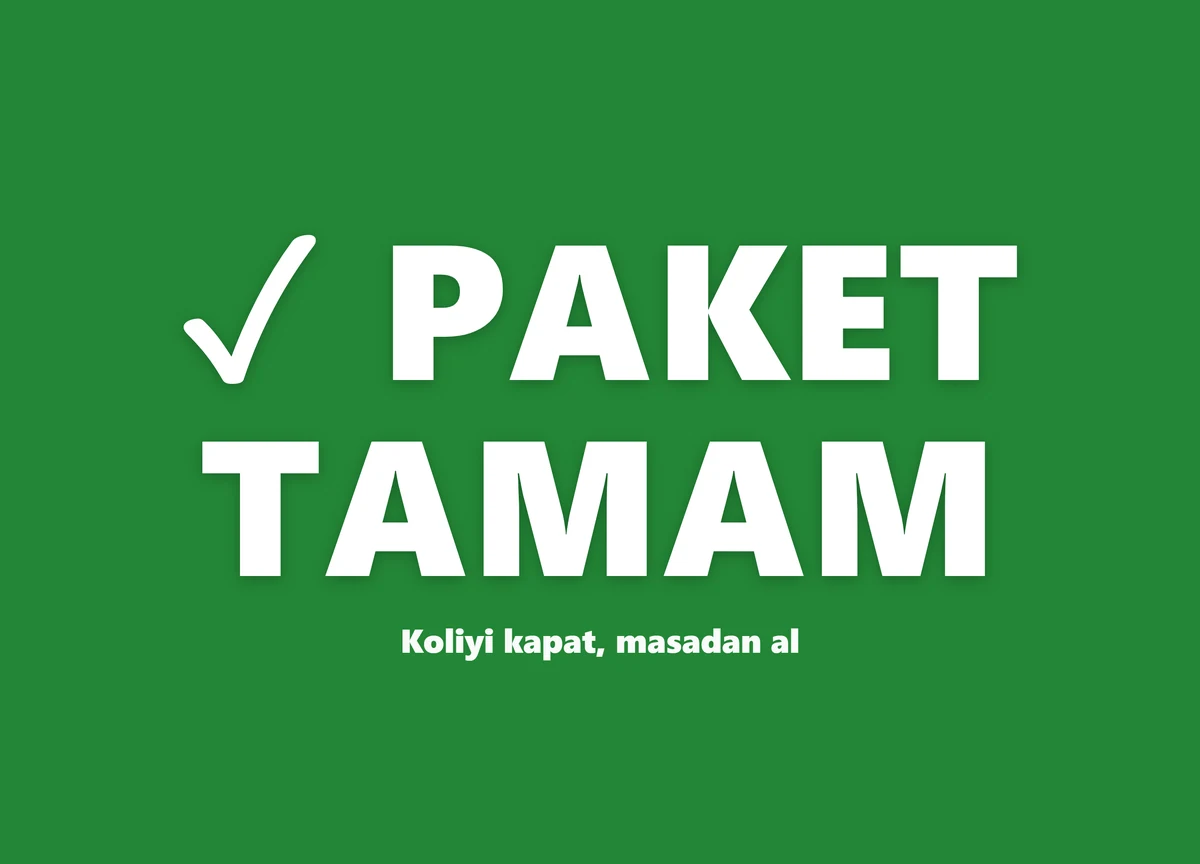
The screen counts every part going into the box and shows the next one. If anything is missing, the box can’t be closed; if an extra or wrong part goes in, the screen shows a red warning. When the box is complete, it gives an audible confirmation and prints the package label.
Every package on record
A video of every package is recorded and can be watched going back at least 365 days. Which part went into which box, who packed it and when: you open it all from the panel.
At the packing table
The images below aren’t illustrations; they show the actual system running on site.
Both videos were shot on site at the same time: on the left, the packing table; on the right, the packing screen keeping count for that table. The button below starts them together.
Part by part, layer by layer
Same data and same order as the packing screen: each part that is read settles into its layer in the box, and the next part waits in yellow. The packer sees which part to pick up and where to put it.
- The order and positions come from the box definition; each box gets its own drawing.
- In a box with the sequence rule on, if a part goes in out of turn, the screen stops and shows a red warning.
- Once the last part is read, the box is closed and the package label prints.
0 / 14 parts
Example: Dibek coffee bar cabinet with doors, box 1 of 3: 14 parts, 10 layers, 150 mm stack, inside dimensions 460 × 740 × 156 mm. Here the box is shown from the side; on the screen, it’s shown from above.
Numbers from the first site
Olasis has been running since July 2026 at a furniture factory, on two packing tables and two drilling machines. The numbers come from that factory’s records.
boxes closed (July 27 to August 26); an average of 92 per packing day.
boxes went out exactly as planned: every box whose contents were recorded; 0 missing parts, 0 extra parts.
incorrect parts caught at packing: 316 wrong, 150 extra.
part labels printed automatically by the two drilling machines (September 24 to October 6).
Configured for your packing line
Every factory’s boxes are different. Boxes, parts, label size and packing staff are all defined in the settings; none of this requires changes to the software.
Box definitions
How many boxes each product ships in and which parts go into each box: defined in the panel or from Excel. The screen counts every box against this definition.
Stacking order
You define the order in which parts go into the box, and their layers. In a box with the sequence rule on, the screen stops if a part goes in out of turn.
Package labels and printers
The size and fields of the package label that prints when a box is complete are edited in the panel. Network and USB printers are set up per table.
Label template
The part label is 100 × 50 mm, with a 45 mm QR code. The template is edited in the panel: sizes from 20 to 300 mm, 100 to 600 dpi, up to 40 fields; changes are tried out on a test label.
Packing staff
Who packed each package is recorded. Packing staff and management users are set up with their roles; supervisors can log in from their phones.
Adapted to your machines
You don’t need new machines for automatic labeling: your existing drilling machine is retrofitted during installation. Each machine that prints labels gets a computer and a label printer.
Panels and reports
Everything that happens in packing is recorded; admins, supervisors and viewers see the same data, each within their own permissions.
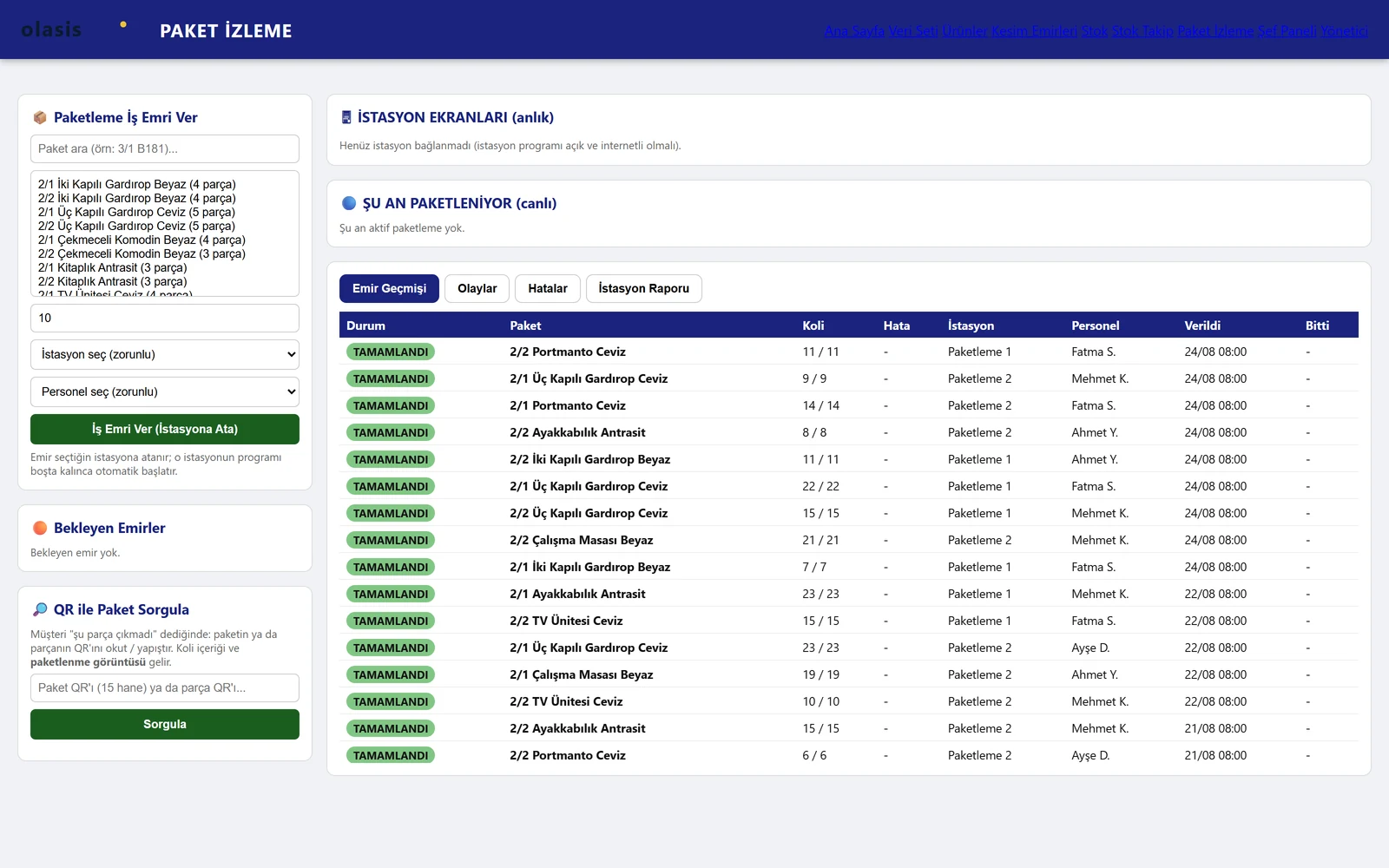
Packed boxes
Boxes packed, day by day. Open a box to see the parts inside, who packed it and at which table.
The “this part was missing” lookup
Scan the QR code on the part or the package: the box contents and the packing footage come up on screen.
Order dispatch
A supervisor or manager issues the packing order. A free table automatically takes the next order assigned to it.
Counters and station report
Counts of labels printed and packed, with a report by table. How much work each table has done, on one screen.
Supervisor panel on your phone
From a phone, the supervisor issues or cancels orders and watches the packing tables and camera feeds live.
Audit trail and help
Who did what, and when, is logged. Every screen has help specific to it, and the menu has search.
Turnkey installation
From cameras to cabling, from machine integration to training, it’s all part of the installation. Hardware quantities are listed in the quote based on your number of tables and machines.
Hardware and mounting
- Olasis Göz camera (4K) and its mounting
- Packing computer and a 27- or 32-inch monitor
- Ribbonless (direct thermal) label printers
- PoE network switch and CAT6 cabling
- Speaker for audible confirmation
Installation and services
- Automatic labeling retrofit for your machines
- Local network setup and static IPs for printers
- Product, part and box list import from Excel
- Staff training and commissioning
- 12 months of remote support and updates
- Automatic nightly backup and restore
How installation works
Four steps, on your line and with your boxes.
Site survey and quote
We work out the hardware and scope from your number of packing tables and machines. The installation schedule is set when the order is confirmed.
Server and setup wizard
Your own server or ours is prepared. In the wizard, the admin account, company name and logo, packing tables and printers are set up.
On-site installation
Cameras, computers, monitors and printers are mounted, the local network is cabled and the machines are retrofitted. The shop-floor software installs from USB without internet; the step ends with camera adjustment and a system test.
Training and commissioning
Packing staff and managers are trained, and you go live with your first boxes. After that, 12 months of remote support and updates are included.
Two deployment options
Your data stays wherever you want it. Either way, the backup file is yours.
On your own server
The software runs on a Linux server (Docker) at your factory: at least 2 cores, 2 GB of RAM, 20 GB of disk, plus extra space for videos. Your data stays with you, and it runs on the local network without internet.
On our server
Each customer gets a separate installation, a separate data disk and a separate address in the form yourcompany.olasis.com. Login is by username and password, with role-based permissions.
Setup wizard
A new installation starts with an empty database. The admin account, company name and logo, packing tables and printers are set up step by step. No other customer’s data comes with it.
Two editions
Track packing only, or production along with packing. You can start with the Packing edition and expand later.
Packing
For the packing line itself.
- Box definitions and stacking order
- Automatic QR labels at the machine
- Reading with Olasis Göz; missing and wrong part checks
- Package label and a video of every package
- Packed-box history and lookup
- Health screen, backups and updates
Packing and production tracking
Everything in the Packing edition, plus:
- Work orders and tasks
- Routing and station tracking
- Cutting screens
- Inventory
- Drilling screens
Data, backups and maintenance
The system backs itself up, updates don’t stop work, and it’s maintained remotely.
Permissions
Admin, supervisor and viewer roles are separate. Everyone logs in with their own username and password; repeated failed logins are throttled.
Nightly backup
An automatic backup runs every night at 3:00 a.m.; the last 14 days and the first day of each month are kept. You can make a manual backup with a note at any time.
Restore
Before a restore, the system automatically takes one more backup. You download the backup file from the panel.
Updates
Updates are installed on the server. Packing tables update when a box is finished, not in the middle of one.
Health screen
The status of computers, cameras and printers on one screen. If needed, a screen can be refreshed and the program restarted remotely.
If the connection drops
During a short outage, reads and machine labels wait in a queue and are sent to the server once the connection is back.
Management app (Windows)
Open packing records and videos in their own app instead of typing an address into a browser. Install it, double-click, and you’re in your company’s panel.
Version 1.0.3 · 19.9 MB · Windows 10 and 11
Install
Double-click the file you downloaded. Setup doesn’t ask for an administrator password and puts a shortcut on your desktop.
Enter your company’s web address
You’re asked once, the first time the app opens. We give you the address during installation; it looks like yourcompany.olasis.com. You won’t be asked again.
Log in with your username and password
Every employee has their own account and permissions. You stay logged in: the app won’t ask again after you close and reopen it. The app checks for updates automatically.
Not a customer yet? Request a demo first: we set up your company’s own address and account during installation.
Frequently asked questions
Do we need a handheld scanner or a scan gun?
No. The Olasis Göz camera above the packing table automatically reads the label on every part that goes into the box. The packer puts the part in the box and does nothing else.
Who prints the labels on the parts?
The machines do. As soon as work starts on a machine, especially the drilling machine, the part’s QR label prints automatically; there’s no scanning there. Your existing machine is retrofitted during installation.
Can a box be closed with a part missing?
No. The screen lists the missing parts, and the package label won’t print until the box is complete. If an extra or wrong part goes in, the screen shows a red warning.
How many packing tables can we set up?
There’s no limit on the number of tables. Each table needs an Olasis Göz camera, a computer and monitor, and a label printer.
What happens if the internet goes down?
During a short outage, reads and machine labels wait in a queue and are sent to the server once the connection is back. The package label and the record of the box contents are completed when the connection returns. An installation on your own server runs on the local network without internet.
How do we import our existing product and box lists?
With Excel. Product, part and box definitions go both ways: you export them, edit them and load them back in.
Where is our data kept?
With an installation on your own server, the data stays entirely with you. With an installation on our server, each customer gets a separate installation and a separate data disk. Either way, you can download the backup file from the panel.
How do installation and training work?
Our team handles hardware mounting, machine retrofits, the local network, software installation and system testing. Packing staff and managers are trained, and you go live with your first boxes.
How do updates and support work?
Installation includes 12 months of remote support and updates. Updates are installed on the server; packing tables update when a box is finished, not in the middle of one.
How is the price determined?
The software license is a separate line item from the hardware and on-site installation; hardware quantities depend on your number of tables and machines. Half of the payment is made with the order and half at commissioning. For a quote, fill out the form or give us a call.
Let’s talk about your packing line
Tell us how many boxes you ship a day and how you check box contents today. We’ll work out the right setup and scope for you.
Installation is turnkey.
Cameras, cabling, machine integration and training are included.
Your data stays wherever you want it.